Are you pumped about Microsoft Fabric? The vision to simplify data blending, analysis, security, governance, and discovery is exciting! OneLake is a rich SaaS service and the core of Fabric’s lake-centric approach. I’ve been tinkering with it’s integration of extended Power Platform components like Dataverse and Power Apps.
The ability to launch Microsoft Fabric directly from the Power Apps experience is coming soon. How can you bring existing Dataverse data into Fabric until the direct integration is released?
Microsoft Fabric Shortcut + ADLS Gen 2 to the rescue!
You can create a Fabric external shortcut to bring your existing Dataverse data into your data lakehouse. Think of ‘Shortcuts’ as objects in OneLake (OneDrive for Data) that can point to internal or external storage locations that allow unifying of data in a single virtualized data lake. They eliminate data duplication and reduce latency .
The solution is to use Azure Synapse Link for Dataverse to connect your Dataverse tables to Azure Data Lake Storage Gen2 which in turn can be added as an external shortcut in your Fabric Lakehouse.

This is an interim workaround until a direct/intuitive linking experience (seen below) to Fabric is available.
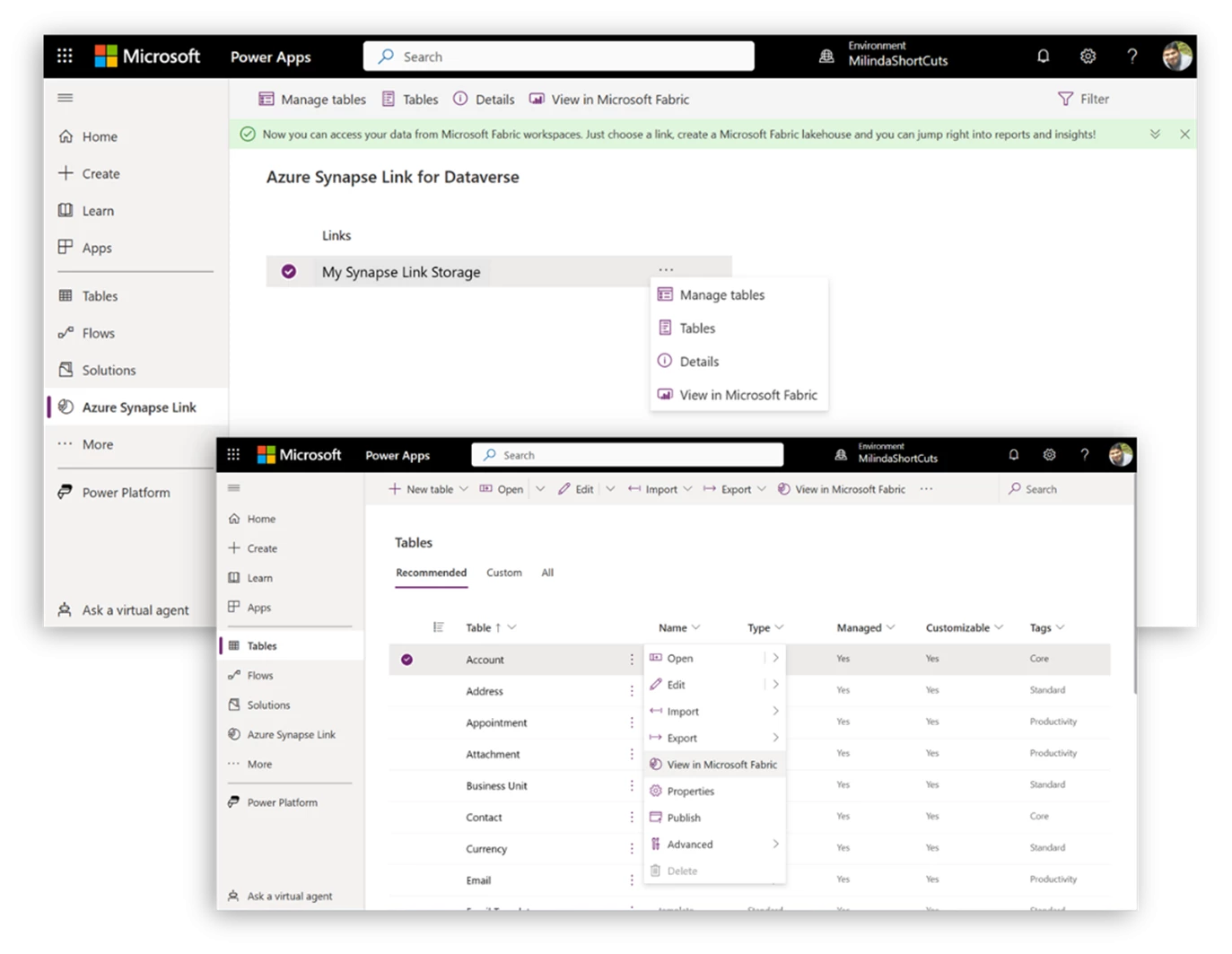
Steps to bring your Dataverse data into the Fabric experience
Below are prerequisites to configure the set up:
- Dataverse:
- Dataverse system administrator security role enabled in the environment your desired tables exist in.
- Table settings should have ‘Tracking’ enabled to allow Azure Synapse linking.
- Azure Data Lake Storage Gen2:
- Storage Account must be created in the same region as your Dataverse environment.
- Owner and Storage Blob Data Contributor role assignments on the storage account.
- (Optional) You could assign the roles to a service principal by registering an Azure Active Directory application in azure portal.
- Microsoft Fabric:
- Sign up for a free trial if you don’t have an MSDN subscription. (Note: Trials are for 60 days. All the Fabric items in workspaces on a trial capacity will be deleted after 60 days.
- Create a new workspace in the Fabric Capacity or use an (non-prod) existing workspace.
Step 1: Create ADLS Gen2 storage account
Set up azure storage account resource for the synapse linking. Azure Synapse Link allows you to push data or metadata updates in Dataverse to Azure Data Lake and keep the data synchronized in an efficient manner. Create a data lake storage account of type Standard general-purpose v2 in the azure portal. Ensure the following properties are enabled:
- Select same region as your Dataverse environment.
- Allow storage account key access and public network access. You could use a service principal.
- ‘Enable hierarchical namespace’ in the Advanced tab of the create storage account page.
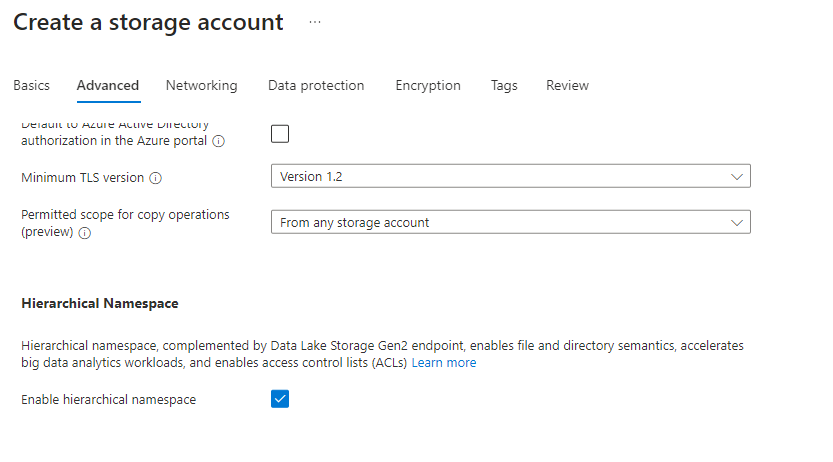
You could use a service principal to assign Owner and Storage Blob Data Contributor role assignments on the storage account. We are keeping it simple here with using your account with role assignments for the purpose for exploring the integration.
Step 2: Create Azure Synapse Link for Dataverse
Use Azure Synapse Link (formerly known as Export to data lake) to connect Dataverse data to ADLS Gen2 resource we created in Step 1.
Navigate to make.powerapps.com and select your environment where the Dataverse tables reside. Select ‘Azure Synapse Link’ on the navigation pane. If you don’t see it, select more to see an expanded list of navigational links. Create a new link > Select Subscription, Resource group & storage account.

Select the tables you’d like to link to ADLS Gen2 and Save.

Check your role assignments, ADLS Gen2 prerequisites and properties listed in Step 1 if you see a transient errors as below:

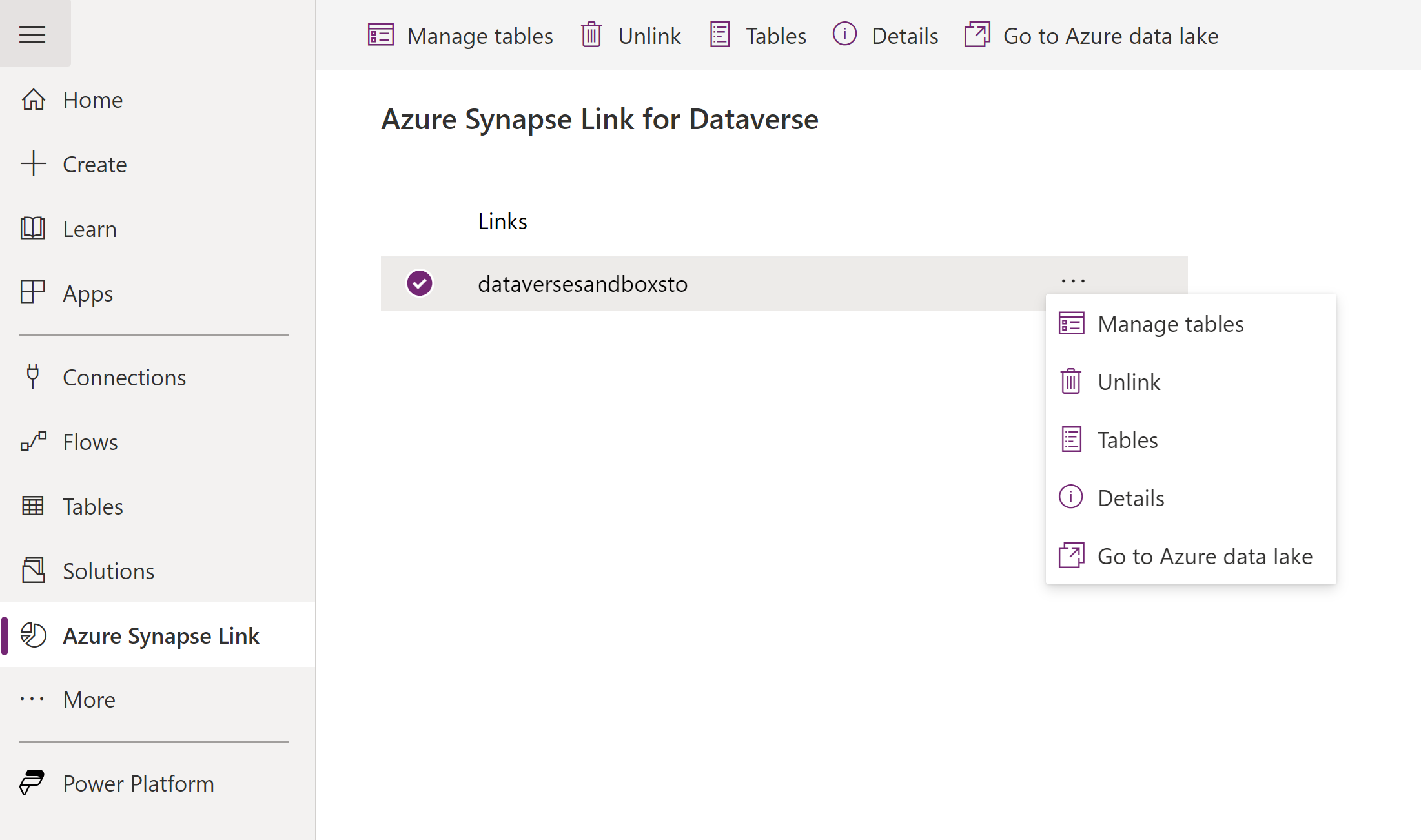
After you have set up the synapse link, you can manage tables as seen below. The data exported by Azure Synapse Link service is encrypted at transit using Transport Layer Security(TLS) 1.2 or higher and encrypted at rest in Azure Data Lake Storage Gen2
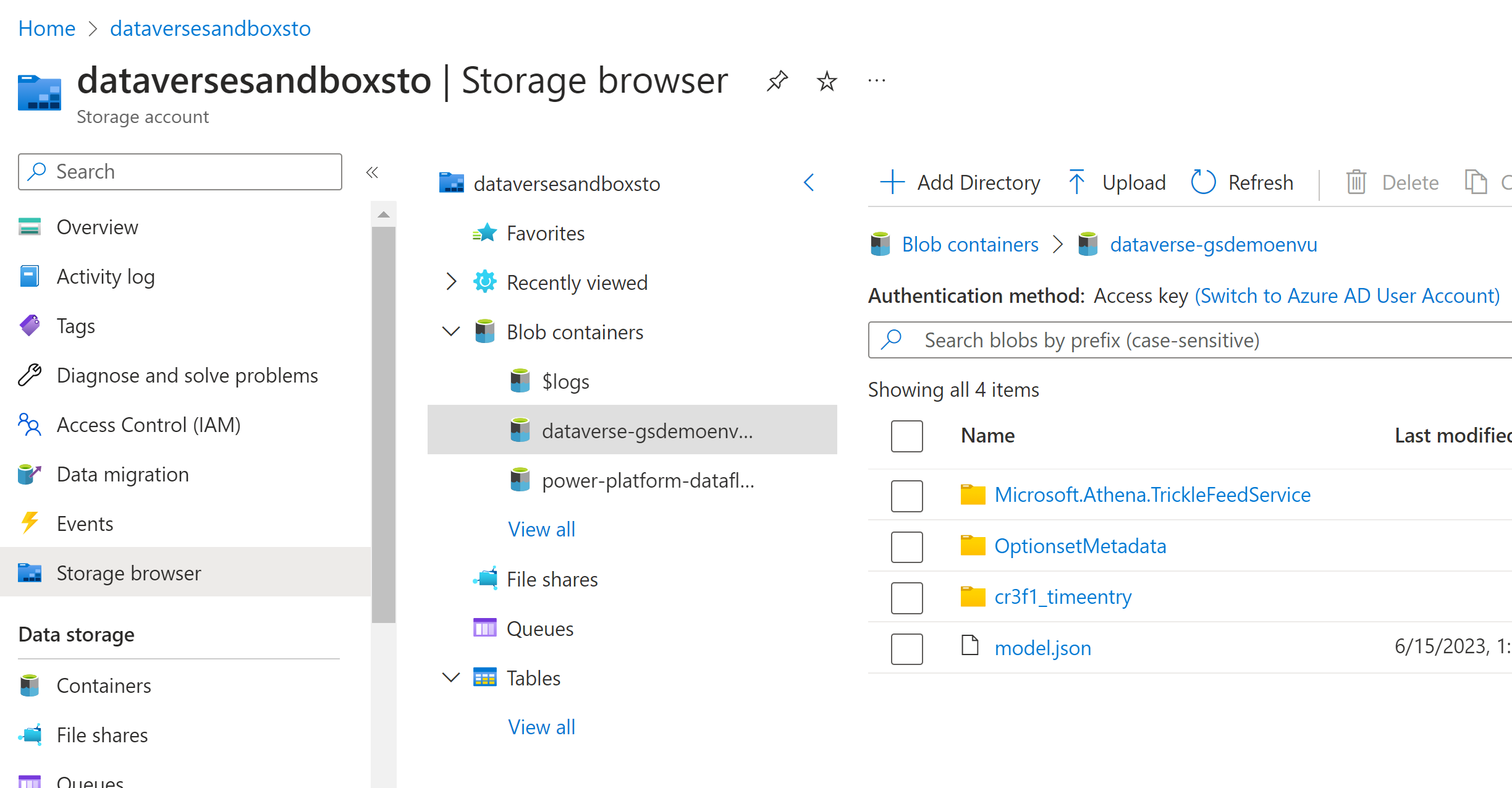
You can view your data in ADLS Gen2 by navigating to the storage account (created in Step 1) in azure portal. Click on Storage Browser > Expand Blob containers > Select the container with name: dataverse-environmentName-organizationUniqueName > View tables (e.g. cr3f1_timeentry) added to synapse link listed as folders. These folders include csv files as snapshots of the data exported to data lake. Copy the container name (format: dataverse-environmentName-organizationUniqueName) for use in the next step in Fabric.
Step 3: Create an ADLS Gen2 shortcut in Fabric Lakehouse
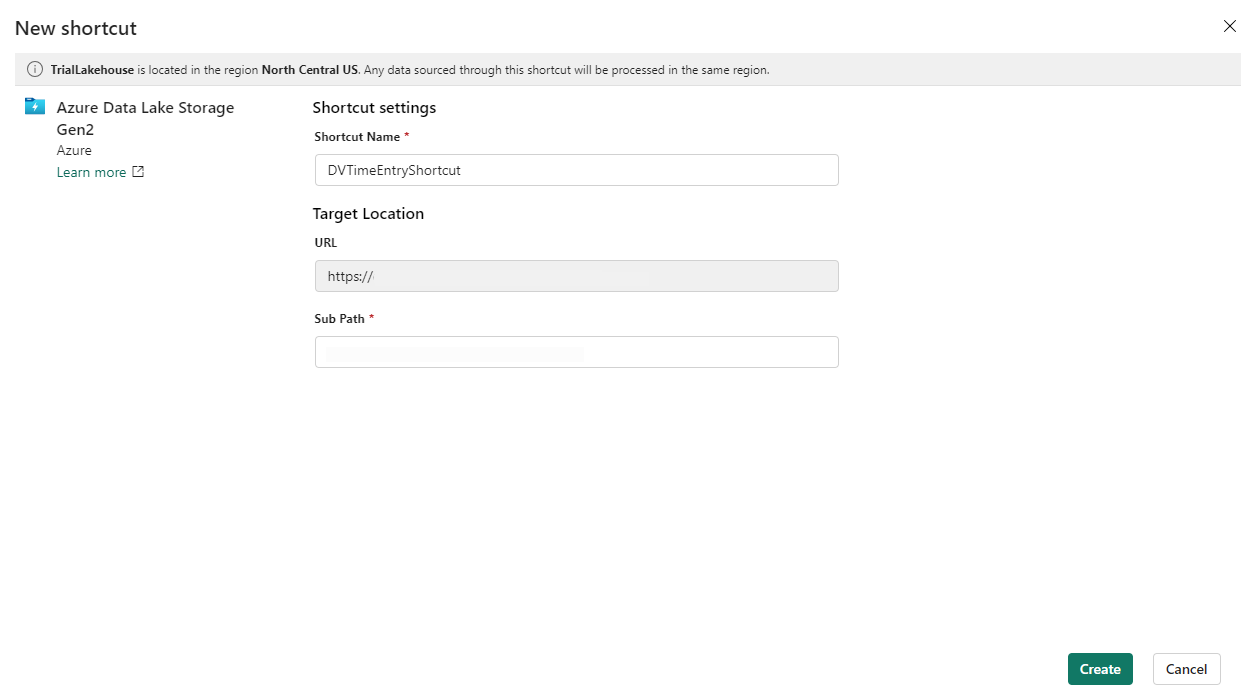
Navigate to your Fabric workspace in app.powerbi.com and create a Lakehouse. Right click on ‘Files’ > Create a new shortcut to external source: ADLS Gen2

Provide the Data Lake storage primary endpoint for the storage account created in Step 1 as the URL. (Search for endpoints on the resource in azure portal) Sign in with organizational account.

Specify the connection details and shortcut settings > Sub Path should be /dataverse-environmentName-organizationUniqueName (copied from Step 2) > Create the Shortcut
Voila!
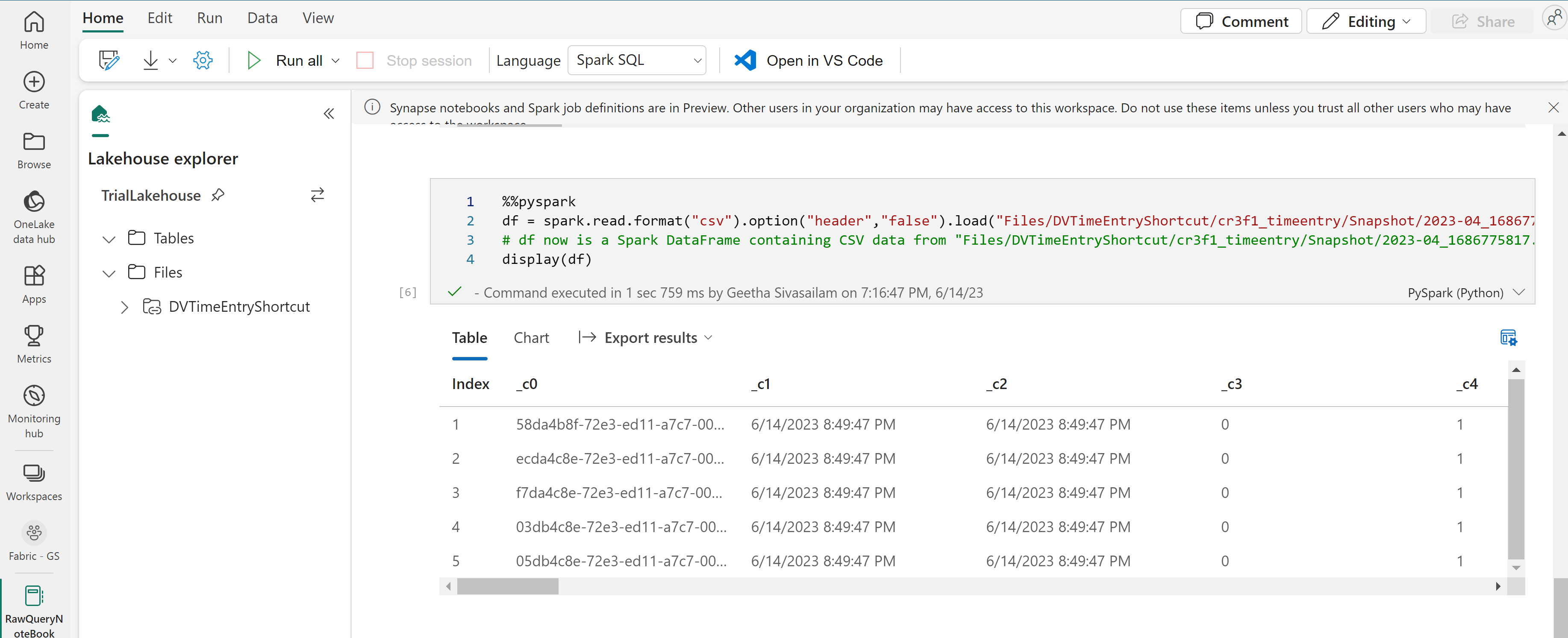
Your ADLS Gen2 shortcut is ready to use with your Dataverse data in Lakehouse. Snapshots of your data in csv format are now virtualized in Lakehouse and can be queried directly using notebooks.

Hope you found this post helpful in your journey with integrating Microsoft Fabric with the extened Power Platform. Stay tuned for more trials and tribulations!
 Business Applications, Azure & M365 musings
Pingback: Microsoft Roadmap, messagecenter en blogs updates van 20-06-2023